
Adding An Operator
You will need to add an Operator to begin assigning jobs to them, you also need to add an Operator if you intend for them to be a Franchisee.
Only Franchisors & Business Owners can add Operators.
Minimum Information Required:
- Operator’s name
- Operator’s email address (this must be unique to Opus)
- Operator’s address
- The Region the Operator belongs to
It’s recommended you have further information about the Operator, so that you have a complete profile of their information centralised within Opus.
To Begin Adding An Operator
Firstly within Opus navigate to the Operators menu item under the sidebar menu and click it.
On the Operators page view, you will have a list of all Operators separated by tabs that are:
Operators, Franchisees (if applicable), Temporary Disabled & Permanently Disabled.
To add a new Operator, click the +Add Operator button in the top right of the screen.

You will now be on the New Operator Screen with a list of fields to complete to add the Operator.
Only the required fields are needed to add an Operator to Opus. It is ok to leave non-required fields blank if they are not needed (E.G. Salutation field).
Name *Required
This is the name of the Operator, it is advised to use their full legal name here.
If no Salutation is set, this will be the name used to identify the Operator on Touch Point Emails sent to clients.
Email *Required **Must be Unique
This is the email that the Operator will use to log into Opus, as well as where they will receive jobs
The Operator needs to have guaranteed access to this email account. Once you add the operator, this is the email address where Opus will send the confirmation email to, as well as password reset emails. Make sure the email is correct and valid before proceeding!
Additionally this email address must be unique within Opus. Opus cannot contain multiple Operators with the same email address.
Business Email
This field can be used to override the email field above and send jobs to this email address instead.
This will not change the email address the Operator needs to use to login to Opus or where they will receive password reset emails.
Salutation
Any alias or shortened name that the Operator may go by E.G. Joanne -> Jo. Also it can be used for any Western names that Operators might use E.G. Zhang Wei -> Ben.
This field will override the name sent out on Touch Point Emails to clients as the name that the Operator identifies themself by.
Address *Required
The address of the Operator is required to be kept in Opus, the full address including house/unit number and road are required.
Begin typing the address and Opus will search Google for matches, select the correct match by clicking on it.
Uniforms Issued
An internal tracking field for you to use to track uniforms issued to the Operator.
Mobile Number
The mobile phone number of the Operator.
Phone Number
An alternative or landline phone number for the Operator
Region *Required
The region that the Operator belongs to. Regions are used in Up For Grabs as catchment areas for jobs and people nearby to provide that service.
If you are not using regions there will always be the states of Australia available to select here I.E. Western Australia, Victoria, New South Wales…Etc.
Select the appropriate region applicable to the Operator, just selecting the state is fine.
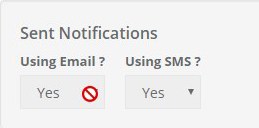
Sent Notifications
This controls how the Operator receives notifications about jobs issued to them. They will always receive Opus App notifications provided they have logged into the Opus App at least once on that device. You can select individually for Operators if they receive SMS and/or Emails too for job alert notifications.
Opus intends to phase out SMS & emails in favour of more reliable Opus App notifications only in future revisions
If this box is greyed out and on trying to change the selection 🚫 appears, then this setting is being overridden by the Business Owner and you cannot change it on an individual level. You will need to contact your Business Owner to have these settings changed.
Subscribe to Up For Grabs Notifications
Default: No
This is a Yes/No selection box to determine if the Operator should be included for Up For Grabs.
If no is selected, the Operator will not receive Up For Grabs notifications, nor be eligible to Accept any Up For Grabs jobs.
If the Operator is intended to be a Franchisee, the settings for Up For Grabs Notifications under the franchise will override this setting.
Date of Birth
A date picker field to allow you to record the date of birth of the operator.
Commencement Date
A date picker field to allow you to record the date that the Operator began.
Police Clearance Date
A date picker field to allow you to record the police clearance date of the Operator.
Vehicle registration number
A field for you to put the vehicle registration number of the Operator for your records.
General Information
A free text field where you can write any specific additional notes about the Operator
Once you’ve completed the fields needed or that you would like, make sure you click Save.
If you’ve forgotten to fill in any required information or put in incorrect field values then on hitting Save, you will be back on the same page with the fields containing errors highlighted in red.

Correct any issues and try hitting Save again.
The adding of an Operator is only successful if you can press Save and the prompt informing you adding the Operator was successful pops up.

You will be returned to the Operators page during this process too where you can view/check on your newly added Operators.
You can now assign jobs to the Operator from the Opus dashboard, or add the Operator to a Franchise, making them a Franchisee.
THE OPERATOR WILL NEED TO CONFIRM THEIR EMAIL TO GAIN ACCESS TO OPUS TO BEGIN RECEIVING JOBS
The email will be sent to the email address you put into the Email field during the process of adding the Operator.
It is highly recommended that after adding the Operator, you contact them and have them follow the email confirmation process right away.
You can in the meantime add the Operator to a Franchise, establish their Franchise, Contract and similar information.